

Link2SD is an android application by Bulent Akpinar that lets you move apps and games to the 2nd partition of your SD card. Why do we have to use Link2SD when Froyo and Gingerbread’s Native Apps2sd moves the files to the SD card? Native apps2sd only moves the apk file of the application leaving other files in internal memory thus you still have to manage your on-board memory and limit your choice of apps because it will eat up your memory and later on you cannot install any files anymore. Additionally, widgets and some applications are not intended to be moved to the SD card. However, Link2SD is only for root users because it is required that your phone is rooted.

The idea behind the application is the same. But Link2SD has more relevant features which the Native Apps2sd lacked giving Android 1.5 and up users the chance to have a taste of what it’s like to have a big phone memory. Additional features were added by the developer to furher optimize the usage of android devices. By using Link2SD, you can move not only the application file, but also the dalvic-cache and libray files of the application. This means that data will be the only one left to consume your internal memory thus installing applications and games would be easier because you can install anything you want without worrying about the famous low memory problem. Furthermore, Link2sd covers all files even moving widgets and the unmoveable applications to the 2nd partition of your SD card.
This is a step by step guide on how you can run Link2SD on your device. This tutorial will work for both stock and cutom ROMs. For ClockWorkMod Recovery users, you can check the other guide below. Follow all the instructions carefully to eliminate possible problems.
- First you have to download Mini Tool Partition Wizard Manager. You can download it HERE.
- Insert your SD card to a card reader and open it on your computer.
- Back up all your files to the computer because partitioning will wipe your data.
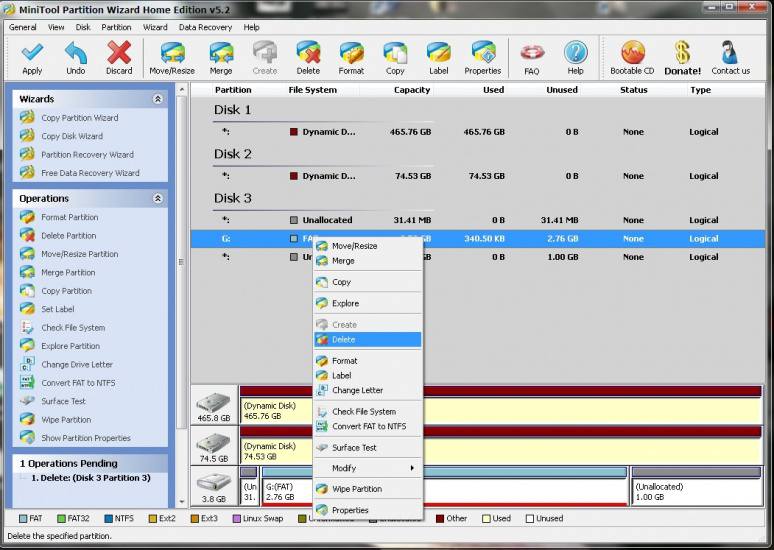
- Open Mini Tool in your computer. Locate your SD card (be careful in choosing and make sure not to choose the drive of your computer)
- Right click and choose Delete.

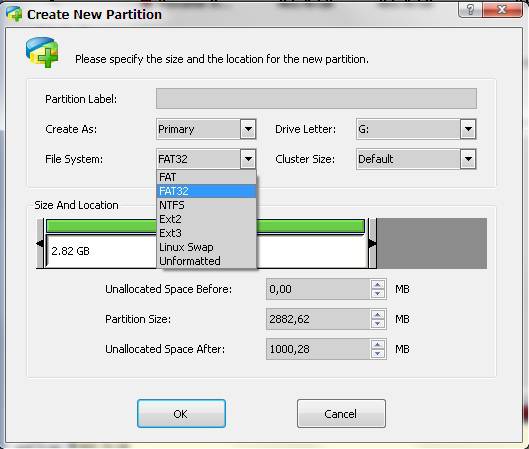
- Right click on it again and choose Create New. Create “FAT32” partition (This is where all your media files will go. Be sure to make it bigger than the 2nd part)
- Select “Create as: PRIMARY”

- Next, create an ext2/ext3/ext4 partition (if you’re on stock ROM, choose ext2). This is where your apps will go. I suggest a value of 512Mb or 1Gb would be big enough but if you insist you can go as high as 2Gb.
- Select “Create As: PRIMARY” (make sure that it is both set to primary because it will not work if it is not set to primary)

- Click the “Apply” button on the top left corner and wait for it to finish the process. Done.
- Put back your SD card to your phone and switch it on.
- Download and install Link2sd from Google Play Store.
- Open Link2sd. You will be prompted to choose between ext2, ext3, ext4 and FAT32. Select ext2.

- It will say mount script created. Reboot your phone now.
- Open link2sd and if the message doesn’t show up, you succeded.
- Go to Link2sd>Settings>check the autolink (to automatically move apps upon installation)
- If you already have some apps,
select “move to phone” then after movingselect “Create Link” (be sure to check the three files: app, dalvic-cache and library files) 

- To check your memory, select “Storage Info”. This will show you the current state of your internal memory, FAT32, and ext2 partition.

- Now you’re done and ready to install vast amount of applications as you wish!


- Back up all your files to your computer. Partitioning wipes the files of your SD card.
- Go into recovery mode
- Select “Advanced”
- Select “Partition SD card”
- Choose your SD-ext size (if you’re using a 2Gb SD card, choose 512Mb. If your SD card is 4Gb or greater, you can choose 1024Mb)
- Select 0 swap
- Wait for the process to finish. Reboot.
- Download and install Link2SD from Google Play Store.
- Open Link2SD you will be prompted to choose between ext2, ext3, ext4 or FAT32. Choose ext4.
- Follow instructions number 14-20. DONE!
Having troubles? Feel free to comment and post your questions below. Enjoy! :)
that was awesome! thank youuuuuu! :) finally found something that works!
Brilliant Tutorial ***** THANK YOU I have Galaxy Ace Adroid 2.3.3 managed to do this from another tutorial (nowhere near as comprehensive as this one !!!) but the 2nd partition wasn’t recognized (ext2) and and some apps wouldn’t move over to SD so put SD into laptop, copied all files into a folder on the desktop, followed your instructions from the beginning but made 2nd partition FAT32, copied all the files back onto card, returned to Ace and turned back on and moved all the remaining apps over (some just linked) now have 1/2 my internal memory free again !!! and no nasty messages !!!!! i agree with ganesh sundaram people like you mean nubies like me can learn and advance. once again THANK YOU
Hi.. i tried doing this but I am confused. I got until no. 7 step but how can i go to the next step? Should I right click again? I can’t find the option of “Create” after clicking “ok” in no. 7 steps. I am sorry I am not good on this.
hey dude. after ko naman magawa yang mga yan.. may lumalabas sa notification ng andriod phone ko sabi nia. “blank SD card or unsupported” pano gagawin ko dun? ^_^
Maybe may mali ka pong nagawa sa steps or naskip. Paki ulit po and tingnan nyo kung ganun pa rin. Kung ganun pa rin, it can be the SD card. Which microSD card class are you using? Hindi ko pa po kasi na experience yan.
i already tried it many times, imation 16gb microSD gamit ko ser. basta pag katapos ko mapartition sa fat32 at ext2 yan lalabas ung “sd card is blank or unsupported” di ko din alam kung bakit tama namn mga ginawa ko haha
anong phone mo? try mo ibang microSD.
LG optimus L3 sir :D wula na po akong magamit na ibang SD kasi puro MB nalang un andito haha… diba fat32 taz ext2 ang gagawin… pwede bang same na fat32?… na try ko kasi un same na fat32. pero ung 10gb di ko makita ung 4gb lang ang nakikita ko.. same na 4gb… kasi 14gb sd ko ser ^_^
pwede ring pareho fat32 kung di supported ang ext2. yung 2nd partition hindi talaga nakikita sa computer sa link2SD lang.
ok thanks alot sir ^_^
I had the same message “blank SD card or unsupported” after following this guide. Link2SD recognized the ext2 partition but not the FAT32. After a bit of googling I steped on this guide http://convickto.blogspot.gr/2012/12/tutorial-definitivo-link2sd-lg-optimus.html. It has almost the same steps except for the FAT32 partition, instead of primary choose logical.
I am getting the following error when I run the Link2sd app to check,
“Mount script cannot be created.
Mount. No such device
Ext4 may not be supported on your device. Try Fat32 on the second partition.”
My phone is Samsung Galaxy ACE. Android 2.2.1
The SD card is 8GB with 6 GB on the FAT 32 and the rest 1.52 GB as Ext4.
Please help me.
Your current ROM doesn’t support ext4. Try ext2 or if it still doesn’t fit, use FAT32.
Thanks a lot for the reply. In order to make sure I tried to repeat once again the above process, (Before your reply), strangely the Ext4 partition is not showing in the “Mini Tool partition”. Even after I deleted it (Step 5 above) I could not get back the 1.52 GB!!! Please help me get back the space, so that I can opt for ext2 partition.
That’s strange. Try to reformat it in other devices. It should show up in Mini Tool so that you can delete it.
THANKS A LOT! I had extended the memory to 2GB, thats because of your clear cut instructions and timely response to my Queries.
I had formatted my SD card through my phone and then repeated the above steps with choosing ext2, as instructed by you. Now it works fine.
Because of the persons like you, we newbies can learn and move on.
GREAT JOB.
THANKS AGAIN
Thanks for the kind words. I’m happy to know that I helped you. =)
hi i am using LG L7 p705 android 4.0 mobile : I am try in my mobile but Link2SD could not obtain root access this msg displaying! How can i do it?
Maybe your phone is not rooted yet? You have to root it first.
paano po ba mag root ng phone?
Same here… same phone.. LG L7.. how to root the phone po? thanks so much!
I have a rooted stock rom (custom kernel?) Samsung exhilarate and a 8gb class 4 microsd. I’ve tried this tutorial and others with every combination of fat and fat32 for both partitions and I continue to get a ‘damaged sd card’ message on my phone each time I partition. I’m wondering if maybe there’s a certain amount of gbs I should be putting on each partition specifically? I did this tutorial with 2.83gb in the first Fat32 partition and 1.95gb the second ext2 partition. My last sd card I partitioned so much I ended up corrupting it -_-. So yeah I’m not trying to do that again. Any advice? thank you.
If you have an 8GB microSD card, put 2GB to your EXT partition and the rest to your multimedia and file storage. Do you have ClockworkMod Recovery? If yes, then follow the steps above because it is easier.
Or maybe your microSD is not compatible so try other microSD cards and see if it works.
after i opened link2sd, my seconde partition cannot be found
Maybe you missed some step. Try to repartition it again and see if it works. If the problem persists, try another memory card with at least Class 4.
after I follow your instruction, I prompted to a Root access warning Link2SD could not obtain root access, If you have root access make sure to allow or grant to the superuser request. Please help me what to do.
Is your android phone rooted? It is a requirement in using Link2SD.
Hi, I m also getting same error. I have rooted my phone.
Allow it when it prompts you to give it root access.
but i am not getting any prompt to allow access… :(
I think you don’t have root access yet? Do you have a Super User icon on your app drawer?
no its not, so what i do??
Hi sir, I downloaded root file from below url. I copied it in sd card and through recovery mode i ran the file, I got message of successful rooted. However when I tried to check in Root Checker app, it says my phone is not rooted. Will you please provide me the right root file. Thank You
http://forum.xda-developers.com/showthread.php?t=1282011
Also I do not have Super User icon on my app drawer. Please help me. I am getting mad because of continuous pop up stating my internal memory low. :(
what is rooted how i root my phone plz help me i m also getting this error……
thanks a lot. it works perfectly.
mr.Alvin Aquino how it will works in samsung galaxy young