

Link2SD is an android application by Bulent Akpinar that lets you move apps and games to the 2nd partition of your SD card. Why do we have to use Link2SD when Froyo and Gingerbread’s Native Apps2sd moves the files to the SD card? Native apps2sd only moves the apk file of the application leaving other files in internal memory thus you still have to manage your on-board memory and limit your choice of apps because it will eat up your memory and later on you cannot install any files anymore. Additionally, widgets and some applications are not intended to be moved to the SD card. However, Link2SD is only for root users because it is required that your phone is rooted.

The idea behind the application is the same. But Link2SD has more relevant features which the Native Apps2sd lacked giving Android 1.5 and up users the chance to have a taste of what it’s like to have a big phone memory. Additional features were added by the developer to furher optimize the usage of android devices. By using Link2SD, you can move not only the application file, but also the dalvic-cache and libray files of the application. This means that data will be the only one left to consume your internal memory thus installing applications and games would be easier because you can install anything you want without worrying about the famous low memory problem. Furthermore, Link2sd covers all files even moving widgets and the unmoveable applications to the 2nd partition of your SD card.
This is a step by step guide on how you can run Link2SD on your device. This tutorial will work for both stock and cutom ROMs. For ClockWorkMod Recovery users, you can check the other guide below. Follow all the instructions carefully to eliminate possible problems.
- First you have to download Mini Tool Partition Wizard Manager. You can download it HERE.
- Insert your SD card to a card reader and open it on your computer.
- Back up all your files to the computer because partitioning will wipe your data.
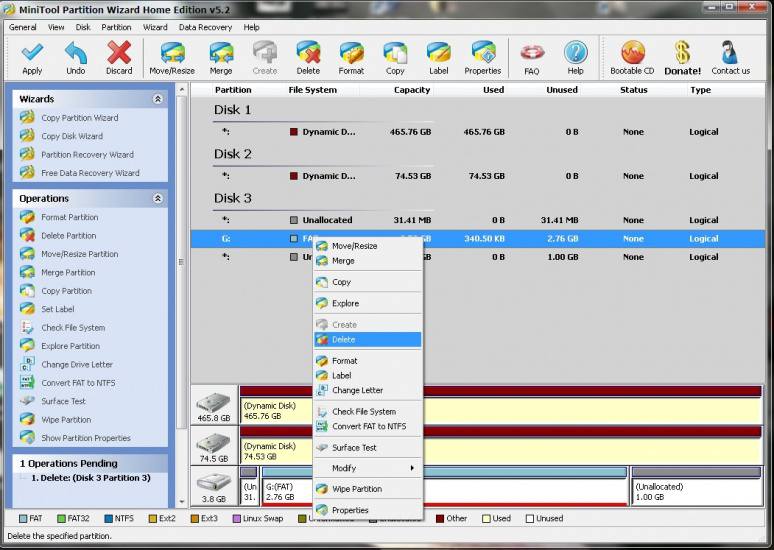
- Open Mini Tool in your computer. Locate your SD card (be careful in choosing and make sure not to choose the drive of your computer)
- Right click and choose Delete.

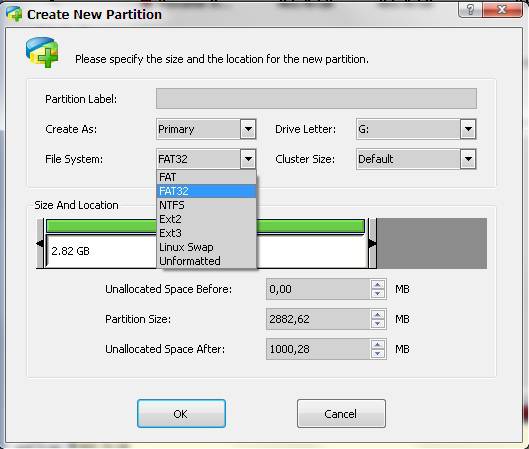
- Right click on it again and choose Create New. Create “FAT32” partition (This is where all your media files will go. Be sure to make it bigger than the 2nd part)
- Select “Create as: PRIMARY”

- Next, create an ext2/ext3/ext4 partition (if you’re on stock ROM, choose ext2). This is where your apps will go. I suggest a value of 512Mb or 1Gb would be big enough but if you insist you can go as high as 2Gb.
- Select “Create As: PRIMARY” (make sure that it is both set to primary because it will not work if it is not set to primary)

- Click the “Apply” button on the top left corner and wait for it to finish the process. Done.
- Put back your SD card to your phone and switch it on.
- Download and install Link2sd from Google Play Store.
- Open Link2sd. You will be prompted to choose between ext2, ext3, ext4 and FAT32. Select ext2.

- It will say mount script created. Reboot your phone now.
- Open link2sd and if the message doesn’t show up, you succeded.
- Go to Link2sd>Settings>check the autolink (to automatically move apps upon installation)
- If you already have some apps,
select “move to phone” then after movingselect “Create Link” (be sure to check the three files: app, dalvic-cache and library files) 

- To check your memory, select “Storage Info”. This will show you the current state of your internal memory, FAT32, and ext2 partition.

- Now you’re done and ready to install vast amount of applications as you wish!


- Back up all your files to your computer. Partitioning wipes the files of your SD card.
- Go into recovery mode
- Select “Advanced”
- Select “Partition SD card”
- Choose your SD-ext size (if you’re using a 2Gb SD card, choose 512Mb. If your SD card is 4Gb or greater, you can choose 1024Mb)
- Select 0 swap
- Wait for the process to finish. Reboot.
- Download and install Link2SD from Google Play Store.
- Open Link2SD you will be prompted to choose between ext2, ext3, ext4 or FAT32. Choose ext4.
- Follow instructions number 14-20. DONE!
Having troubles? Feel free to comment and post your questions below. Enjoy! :)
Hi,
Has anyone been able to complete this tutorial on a Win 7 64-bit? I keep getting the “Windows could only recognize the first partition” and when I insert the card on the phone it says “Second partition not found”. Any ideas?
Thanks!
Never mind it all worked well. I was missing a step. Duh!
Sir ask ko lang po panu ma fix ung Red Triangle Dead Android on Recovery upon pressing power button and volume up lumabas is ung dead android na may exclamation point na red ..di ako makagawa ng recovery for my CM Titan w500..hope to get feedback ..thanks a lot
You should install ClockworkMod recovery first if you want to do it that way. Else, follow the first method.
its says
“Link2SD could not obtain root access
If You have root access make sure you respond’ Allow’ or ‘Grant’ to the superuser request”
I use Gt-I5800
Your phone should be rooted first.
i am using CWM. do i need wipe data/factory reset or not?
No need.
hello
i just follow those instruction but it cant find my ext2.
please help me
Repeat the process. Try it again or use FAT32 on both partitions.
how to find wheather my mobi has STOCK ROM or not..
I’m using samsung galaxy Y android 2.3 version..
Plzzz help me out i wanna use this app…
If you didn’t flash anything on it, then it’s stock.
how to know whether we are on STOCK ROM or not…
I’m using samsung galaxy Y android 2.3 version
plz help me with this???
I have a question. When you update the phone’s ROM or change it to a new one, do you need to unlink and backup the apps or can you just mount them again on the new system without making a backup?
You need to back up them because the 2nd partition isn’t accessible in Windows.
Hello Friends,
I have same problem as Erieze Lagera mentioned, but what is the solution suggested by steve, please tell me
hello i finished the whole procedure succesfully rooted and partitioned my sd card and linked the apps but after when i try restart my phone or remonunt the sd card,,,link2sd automatically uninstall the linked app from my phone..plz help