

Link2SD is an android application by Bulent Akpinar that lets you move apps and games to the 2nd partition of your SD card. Why do we have to use Link2SD when Froyo and Gingerbread’s Native Apps2sd moves the files to the SD card? Native apps2sd only moves the apk file of the application leaving other files in internal memory thus you still have to manage your on-board memory and limit your choice of apps because it will eat up your memory and later on you cannot install any files anymore. Additionally, widgets and some applications are not intended to be moved to the SD card. However, Link2SD is only for root users because it is required that your phone is rooted.

The idea behind the application is the same. But Link2SD has more relevant features which the Native Apps2sd lacked giving Android 1.5 and up users the chance to have a taste of what it’s like to have a big phone memory. Additional features were added by the developer to furher optimize the usage of android devices. By using Link2SD, you can move not only the application file, but also the dalvic-cache and libray files of the application. This means that data will be the only one left to consume your internal memory thus installing applications and games would be easier because you can install anything you want without worrying about the famous low memory problem. Furthermore, Link2sd covers all files even moving widgets and the unmoveable applications to the 2nd partition of your SD card.
This is a step by step guide on how you can run Link2SD on your device. This tutorial will work for both stock and cutom ROMs. For ClockWorkMod Recovery users, you can check the other guide below. Follow all the instructions carefully to eliminate possible problems.
- First you have to download Mini Tool Partition Wizard Manager. You can download it HERE.
- Insert your SD card to a card reader and open it on your computer.
- Back up all your files to the computer because partitioning will wipe your data.
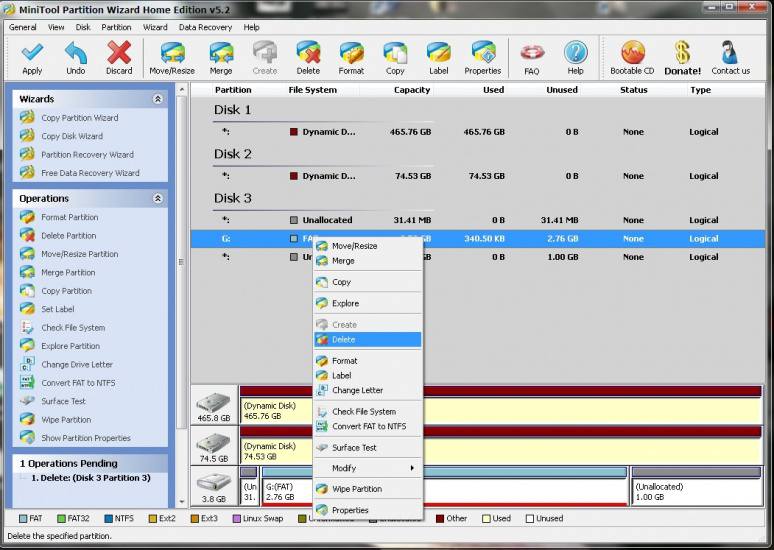
- Open Mini Tool in your computer. Locate your SD card (be careful in choosing and make sure not to choose the drive of your computer)
- Right click and choose Delete.

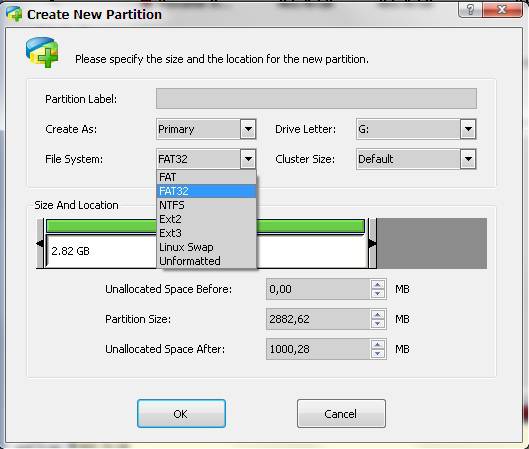
- Right click on it again and choose Create New. Create “FAT32” partition (This is where all your media files will go. Be sure to make it bigger than the 2nd part)
- Select “Create as: PRIMARY”

- Next, create an ext2/ext3/ext4 partition (if you’re on stock ROM, choose ext2). This is where your apps will go. I suggest a value of 512Mb or 1Gb would be big enough but if you insist you can go as high as 2Gb.
- Select “Create As: PRIMARY” (make sure that it is both set to primary because it will not work if it is not set to primary)

- Click the “Apply” button on the top left corner and wait for it to finish the process. Done.
- Put back your SD card to your phone and switch it on.
- Download and install Link2sd from Google Play Store.
- Open Link2sd. You will be prompted to choose between ext2, ext3, ext4 and FAT32. Select ext2.

- It will say mount script created. Reboot your phone now.
- Open link2sd and if the message doesn’t show up, you succeded.
- Go to Link2sd>Settings>check the autolink (to automatically move apps upon installation)
- If you already have some apps,
select “move to phone” then after movingselect “Create Link” (be sure to check the three files: app, dalvic-cache and library files) 

- To check your memory, select “Storage Info”. This will show you the current state of your internal memory, FAT32, and ext2 partition.

- Now you’re done and ready to install vast amount of applications as you wish!


- Back up all your files to your computer. Partitioning wipes the files of your SD card.
- Go into recovery mode
- Select “Advanced”
- Select “Partition SD card”
- Choose your SD-ext size (if you’re using a 2Gb SD card, choose 512Mb. If your SD card is 4Gb or greater, you can choose 1024Mb)
- Select 0 swap
- Wait for the process to finish. Reboot.
- Download and install Link2SD from Google Play Store.
- Open Link2SD you will be prompted to choose between ext2, ext3, ext4 or FAT32. Choose ext4.
- Follow instructions number 14-20. DONE!
Having troubles? Feel free to comment and post your questions below. Enjoy! :)
Hi my phone is Samsung s7562/s duos, it is rooted already and SD card partitioned as well (thanks to your tutorial! :) but I’m getting this failure/error when trying to “move to SD card”: “pkg:/data/app/com.strava-1.apkfailure [install failed insufficient storage]” (my SD card memory is actually sufficient when you check it)
What do you think is the problem? Thanks in advance.
Hi, you can just directly link it to the sdext2 by clicking ‘create link’. I believe its pertaining to the internal memory and not in the sd.
Thanks for the quick reply but both my phone ‘internal’ memory (700mb+ free) and SD card (2gb free); I can create links but upon clicking “move to SD card” of any app that can be moved it says insufficient storage.
Hi, once it is ‘linked’, you no longer need to ‘move to SD card’ because the apps is now stored in the second partition that you created. I believe you already nailed it.
can’t delete and make partitions because my sd card is write protected HELP!!
Guys you can link data/oob files using Directory Bind :))
Have a great one
Hi,can you pls give the link? I can’t find one in play store. Thanks. Happy new year
Directory Bind has the same function as Link2SD. But what I want with Link2SD is that it gives all the list of application all through you system. You can also filter all the movable application, which make Link2SD safe to use.
Directory Bind also links the application but you will configure it manually. And as far as I know, Directory Bind doesn’t link dalvik-cache, so it may reset your game data after linking.
This is only a knowledge based information, you may not rely on my information.
Thank you! :)
happy new year.pano ko po link ung data/obb file ng hd games?thanks in advance
Hi, you don’t need to link those files. Just put it on your microSD card. In ‘Sdcard>Android>obb> .
The game cant read the files if i put it in the external sdcard. Only the apk,lib,dex files are linked in the ext sdcard.
got my phone rooted. my only problem is i still cant move or link the obb/data file. u know what i mean sir? ung obb file kasi ang malaki lalo na sa hd games. can u help me with this? thanks and happy new year!
What should i do about my sd card not being recognized? “Blank External Sd Card” on my notification.. and when i click on it there’s two option: format or cancel.. but when i format it goes back fron being normal.. no more 2nd partition.. help tnx
just format it and repeat the whole process. if it doesn’t work, try another microSD card.
I’m using galaxy y with 2GB..It Not prompting anything after tat root access warning… wher 2 make allow or grant 2 the super user request??????. pl help me out
you can use either allow or grant. its the same.
Hi I have followed instructions but cannot get the root access as I get a warning: Lonk2D could not obtain root access. If you have root access make sure you respond ‘Allow’ or ‘Grant’ to the superuser request. I do not know where this superuser request is. On the mini tool partion should the status say active or none? I’ve tried both ways?
Thanks
Your phone should be rooted before trying Link2SD. It’s a requirement.
I have followed your rooting instructions but still get this message. I have HTC Wildfire
‘UNFORTUNATELY, THE PROCESS COM.GOOGLE.PROCESS.GAPPS HAS STOPPED.”yan po ung naabas sa CM FLARE KO.. tapos sunod sunod na rin po ung nalabas na puro ganyan.. pati na rin po ung ibang apps hnd na mabuksanm,… patulong naman po.. salamat
Hi, try to factory reset. I think Link2SD is not compatible with the Flare.
Link2SD and this method worked fine for me, I’m using a Cherry Mobile Flare.
Thanks for the info! What is the 2nd partition you used? ext2/3/4?
I believe that you removed your external SD card and then mount it back then (considering your phone is power on). You should restart your phone to remount the ext SD.
So whenever you removed your ext SD with running OS, you should restart your phone when you put your SD back.
I encountered that problem and just restart my phone to access my apps again.
But if my method didn’t work, maybe NoypiGeeks is right.
Good luck po!
Please inform me if you succeed on making Link2SD work on your Flare. I tried it before but I failed because it doesn’t seem to support extra partitions.
Okay, i’ll inform you.
ouch this is good but there is a problem regarding of this app….. first it makes my sgy very laggy and the second problem consuming more power also RAM it goes up to 200+ im trying to disabled some apps but still the same…..how can i repartition my Galaxy y ???? im using 16gb everytime i reformat this sdcard im losing 2gb so sad huhuhuh :(